PostSharp
[Threading]
Write verifiable thread-safe code in .NET without exploding your brain.
- Dramatically reduce the complexity of multithreaded code. Free up your brain for business logic.
- Reduce random defects. Most problems can be detected at build time or in single-threaded unit tests.
- Maintain crystal-clear business logic, making it easier to modify post-release.

Instead of Locks, Events, and Queues:
Make Architectural-Level Decisions
2
3
4
5
6
7
8
9
10
11
12
13
14
15
16
17
18
19
20
21
// Per architectural decision, any implementation of IWizardController will run
// exclusively on the UI thread. Nobody ever needs to think about this again.
[ThreadAffine]
[Dispatched(AttributeInheritance = MulticastInheritance.Strict)]
public interface IWizardController
{
    Task BranchAsync(params IWizardPart[] parts);
    Task GoToNextPageAsync();
    Task CloseAsync(bool success);
}


// Per architectural decision, any IProgressTask must be immutable and report
// progress through an IProgressTaskObserver.
[Immutable]
[NamingConvention("*Task")]
public interface IProgressTask
{
    string Caption { get; }
    Task ExecuteAsync(IProgressTaskObserver observer);
}
The Problem with Locks – When using locks, events, and queues, you make decisions at the level of individual fields. The mental model is so complex that it hardly fits in people's minds, making bugs inevitable. Senior developers are overwhelmed with completely unnecessary problems.
Higher Abstraction – With PostSharp Threading, multithreading becomes a conceptual and architectural decision. This decision can be made at the level of an entire class hierarchy or namespace.
Free Up Your Brain – You no longer have to make hundreds of micro-decisions. The mental model fits everyone's brain. Most team members no longer need to worry about multithreading. Your most experienced developers can now focus on other complex problems.
Choose the Right Threading Model
There is no silver bullet. Understand the different threading models and decide which one is appropriate for each part of your application.
Immutable
This model ensures that the object or its children cannot be modified after the constructor of the top object has completed. If modification is attempted, a runtime exception is thrown. Documentation
Synchronized
This is probably the simplest and most popular model. All public methods execute within a lock. A runtime exception is thrown if the object is accessed from a thread that does not own the lock. Documentation
Thread Affine
This model ensures that the object is only accessed from the UI thread, or it throws an exception. All system UI types are thread affine, making this a good choice for all your controls and windows. Documentation
Freezable
Similar to the immutable model, but a Freeze method must be called. It also throws
an exception if the object is accessed from a different thread than the one the constructor
was called on before Freeze has been invoked.
Documentation
Reader-Writer Synchronized
Reader methods can run concurrently, but writer methods get exclusive access. This is a good choice for objects that are bound to the UI but need to be accessed from a background thread. Property accessors automatically acquire the appropriate level of lock, but methods must be annotated manually. Documentation
Actor
All calls to the actor are enqueued and executed sequentially in a background thread.
This model integrates perfectly with async/await.
It can replace most queues.
Documentation
Fail Fast, Fail Sooner
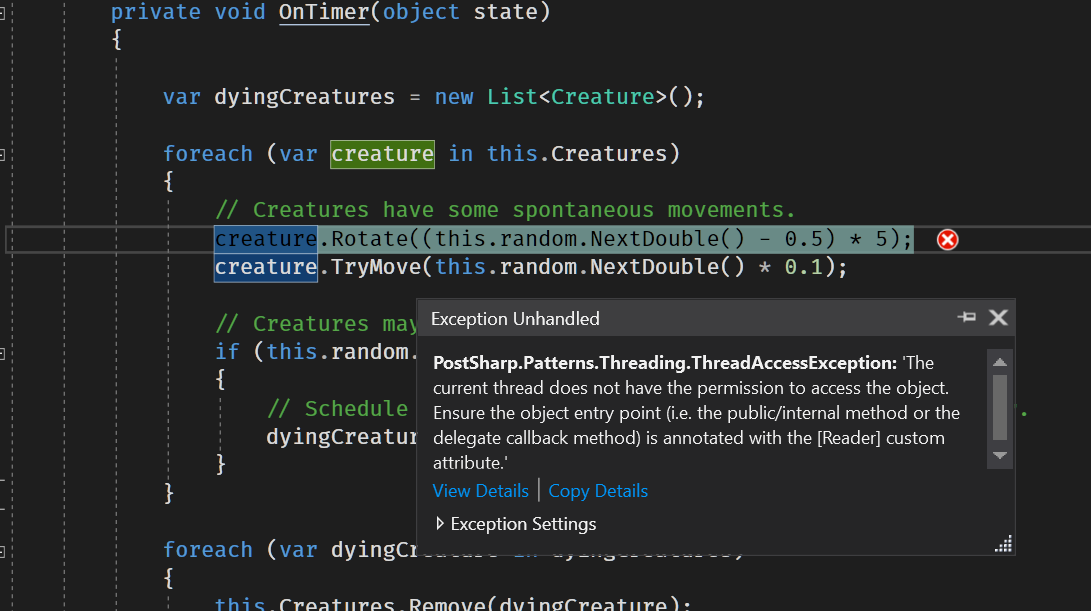
Model Validation – Once you choose a model, PostSharp will ensure that you are not breaking the rules. Receive deterministic build-time or runtime errors instead of risking data races.
Enhance Your Unit Tests – With randomness eliminated, even single-threaded unit tests will expose most threading issues.
Lean Release Builds – Runtime validation is only injected into your debug builds by default, so your release builds remain fast and won't crash due to assertion failures.
Support for Child Objects
2
3
4
5
6
7
8
9
10
11
12
13
14
15
16
17
18
19
20
21
[ReaderWriterSynchronized]
public class Order
{
    [Child] // Order lines will share the same lock.
    public AdvisableCollection<OrderLine> Lines { get; }
        = new AdvisableCollection<OrderLine>();

    // Requires the guarantee that the whole entity will not be modified.
    public decimal Subtotal => this.Lines.Sum(l => l.Amount);
    public decimal Discount { get; set; }
    public decimal Total => this.Total - this.Discount;

    [Writer] // Will execute with exclusive access.
    public void Merge(Order other)
    {
        foreach (var otherLine in other.Lines)
        {
            this.Lines.Add(otherLine.Clone());
        }
    }
}
Many business entities are composed of several instances of C# classes. In such cases, locks must be shared across the entire entity.
Parent-Child Relationships —
Simply mark child objects with the [Child] attribute and they will automatically inherit
the threading model and the lock of the parent instance. Documentation
Flexible Collection Types — PostSharp provides collection types that will work with any of the supported threading models. You don't need to change the collection types when you change the threading models. Documentation

![PostSharp [Threading]](/images/products-shadow/ultimate.png?etag=2ea31357d8e42379dca6bc992036e85a)